
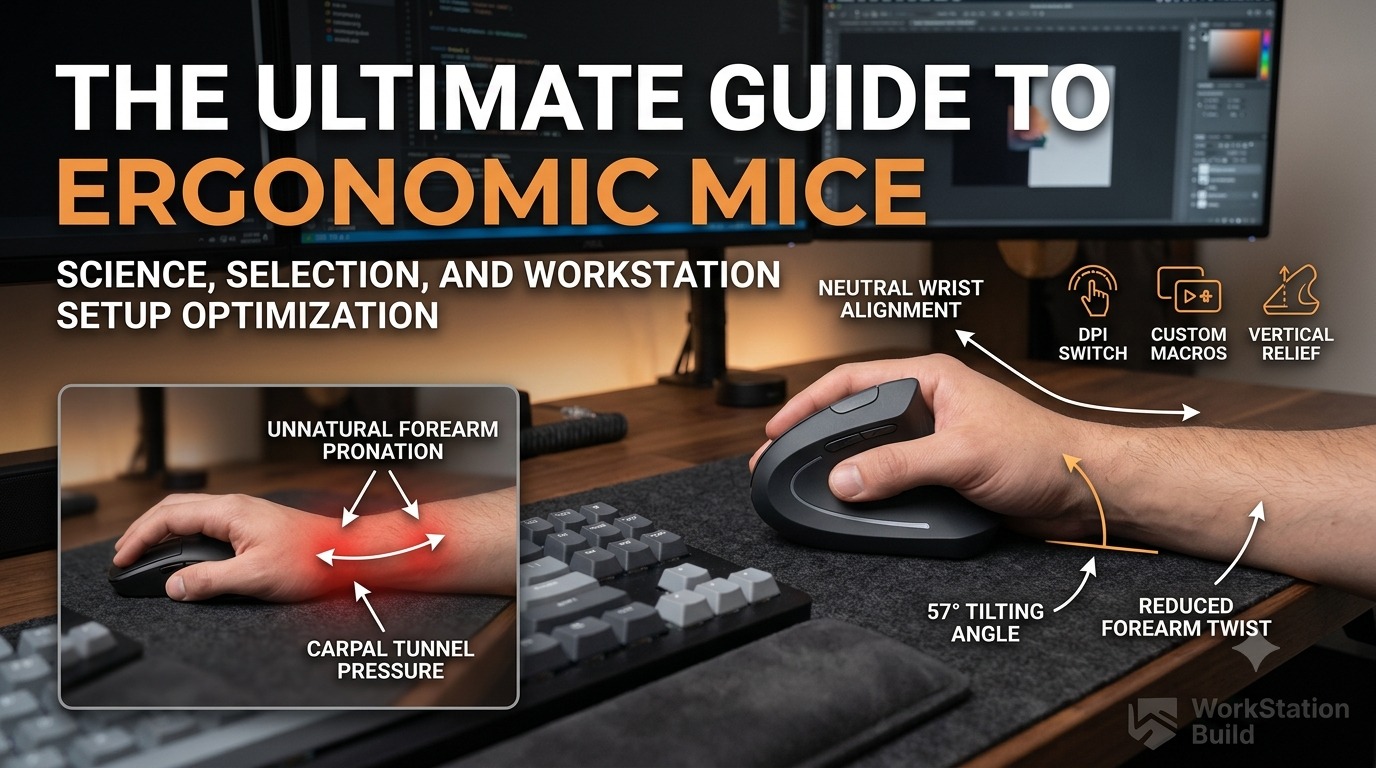
The Ultimate Guide to Ergonomic Mice: Science, Selection, and Workstation Setup Optimization
For knowledge workers, software developers, creative professionals, and gamers, the computer mouse is an essential extension of the hand. We use it for thousands of micro-movements, clicks, and scroll adjustments every single day. Yet, while desktop builders spend countless hours researching high-refresh-rate monitors, mechanical key switches, and thermal cooling solutions, the humble mouse is frequently treated as an afterthought.
Using a conventional flat mouse for six to ten hours a day forces your wrist, forearm, and shoulder into an unnatural physical posture. Over months and years, this subtle physical stress manifests as chronic wrist fatigue, tendinitis, or severe condition like Carpal Tunnel Syndrome (CTS).
Investing in an ergonomic mouse is not merely about comfort—it is a proactive health strategy engineered to optimize long-term productivity and safeguard your musculoskeletal health.
In this comprehensive guide, we will explore the biomechanics of computer usage, break down the different categories of ergonomic mice, evaluate key technical specifications, and provide actionable advice on integrating an ergonomic mouse into a high-performance workstation setup.
1. The Science of Hand Ergonomics: Why Traditional Mice Fail
To understand why ergonomic mice are necessary, we must first analyze what happens to the human arm when using a standard desktop mouse.
Conventional Flat Mouse:
Forearm Pronated (Radius & Ulna Twisted) ➔ Desktop Wrist Compression ➔ Tendon Friction & Carpal Pressure

Ergonomic Vertical Mouse:
Neutral "Handshake" Position (57° Angle) ➔ Relieved Forearm Bones ➔ Zero Desktop Wrist Pressure
Forearm Pronation vs. The Neutral Handshake Position
When you rest your hands naturally at your sides or on a table, your palms face inward toward each other. This is known as the anatomical neutral position.
When you place your hand flat on top of a standard computer mouse, your forearm undergoes pronation—a rotation of approximately 90 degrees where the radius bone crosses over the ulna bone. Holding this pronated posture for extended periods creates continuous muscle tension in the flexor and extensor muscles of the forearm, limiting blood flow and accelerating muscular fatigue.
Carpal Tunnel Compression
A flat mouse requires your wrist to rest directly against the desk surface. This contact point puts vertical pressure on the carpal tunnel—a narrow passageway located on the anterior side of the wrist that encloses the median nerve and nine flexor tendons. Continuous pressure on this tunnel can inflame the tendons, leading to numbness, tingling, and chronic pain associated with Carpal Tunnel Syndrome.
Wrist Extension and Ulnar Deviation
Standard mice often force users into two problematic wrist postures:
- Wrist Extension: Bending the hand backward at the wrist to reach elevated mouse buttons.
- Ulnar Deviation: Angling the wrist outward toward the pinky finger to steer the mouse cursor across multi-monitor setups.
Both positions compress internal wrist structures and place uneven tension on forearm tendons. Ergonomic mice solve these issues by re-orienting the mouse body to match the hand’s natural resting geometry.
2. Types of Ergonomic Mice: Form Factors Explained
Ergonomic mice are not one-size-fits-all. Different designs address specific physical strains and workflow requirements. Understanding these distinct categories will help you select the ideal peripheral for your workstation.
+--------------------------+-------------------------------------+---------------------------------------+
| Form Factor Type         | Primary Design Feature              | Ideal Use Case                        |
+--------------------------+-------------------------------------+---------------------------------------+
| Vertical Mice            | 50° to 70° vertical angle tilt      | Forearm twist relief, CTS prevention  |
| Horizontal Contoured     | Sculpted thumb rest & lateral slope | Heavy productivity, easy transition   |
| Thumb Trackballs         | Stationary body, thumb-driven ball  | Limited desk space, wrist joint pain  |
| Finger Trackballs        | Large central ball, finger-driven   | Ambidextrous use, ultra-precision     |
+--------------------------+-------------------------------------+---------------------------------------+
1. Vertical Mice (The “Handshake” Grip)
Vertical mice are designed with a steep slope—typically angled between 50 and 70 degrees relative to the desk surface.
- How They Work: You hold the mouse like a handshake, resting the side of your hand (the hypothenar eminence) on the mouse pad rather than flattening your palm.
- Pros: Almost completely eliminates forearm pronation; drastically reduces carpal tunnel pressure; aligns the wrist and forearm naturally.
- Cons: Requires a 1 to 2-week muscle memory adjustment period; slightly less agile for fast-paced competitive gaming.
- Popular Examples: Logitech MX Vertical, Anker Wireless Vertical Mouse, Logitech Lift.
2. Sculpted / Contoured Horizontal Mice
Contoured horizontal mice maintain a familiar top-down mouse shape but introduce ergonomic refinements, such as an exaggerated lateral slope (20 to 35 degrees), an integrated thumb rest, and an anatomical palm dome.
- How They Work: They provide continuous support for the palm and thumb, preventing finger drag across the desk and offering a mild tilt to reduce pronation without drastically altering your grip dynamics.
- Pros: Zero learning curve; exceptional build quality; packed with productivity hardware (dual scroll wheels, customizable macro buttons).
- Cons: Does not fully eliminate forearm pronation compared to true vertical designs.
- Popular Examples: Logitech MX Master 3S, Razer Pro Click, Keychron M6.
3. Trackball Mice (Thumb-Operated and Finger-Operated)
Trackball mice remain stationary on your desk. Instead of sliding the entire device to move the cursor, you roll a smoothly mounted sphere using your thumb or fingers.
- Thumb-Operated Trackballs: Look like traditional mice, but feature a trackball under the thumb. Your arm and wrist remain completely stationary while your thumb steers the pointer.
- Finger-Operated Trackballs: Feature a large, central sphere controlled by the index and middle fingers, flanked by ambidextrous control buttons.
- Pros: Eliminates all arm and wrist movement; ideal for compact desk setups or users with severe wrist mobility issues; works on any surface (including soft couches or cramped airplane trays).
- Cons: Demands fine motor control from thumb or fingers; requires periodic cleaning to remove skin oil and dust accumulation inside the trackball cup.
- Popular Examples: Logitech MX ERGO (Thumb), Kensington Expert Mouse (Finger), ELECOM Deft Pro.
3. Key Technical Features to Evaluate
When shopping for an ergonomic mouse, hardware specifications play a crucial role in daily usability. Here are the core features you must evaluate before making a purchase.
1. Tilt Angle and Size Options
- Tilt Angle: A tilt of 57 degrees is widely considered the sweet spot for vertical mice, striking an optimal balance between pronation relief and button click control.
- Hand Sizing: Sizing is critical. A mouse that is too large forces your fingers to reach for the scroll wheel, causing hyperextension. A mouse that is too small leads to hand cramping. Measure your hand length from the crease of your wrist to the tip of your middle finger:
- Small Hands: Under 6.9 inches (17.5 cm) — e.g., Logitech Lift
- Medium to Large Hands: Over 6.9 inches (17.5 cm) — e.g., Logitech MX Vertical
2. Sensor Precision and DPI Adjustability
Dots Per Inch (DPI) measures sensor sensitivity. Higher DPI settings allow the cursor to move further across the screen with minimal physical movement of your hand.
- Look for an optical sensor with dynamic DPI toggles (ranging from 400 to 4,000+ DPI).
- If you operate multi-monitor arrays or a 4K ultra-wide display, setting your DPI to 1,600 or higher allows you to navigate the entire screen without lifting your wrist or pushing your elbow across the desk.
3. Primary Button Switches and Click Force
A heavily overlooked aspect of ergonomic design is click resistance. Rigid switch mechanisms require excessive actuation force, which causes index finger strain during repetitive clicking sessions.
- Seek out low-actuation-force micro-switches or silent switches. Silent switches reduce tactile resistance while dampening acoustic noise in shared office environments.
4. Customizable Controls and Dual-Mode Scroll Wheels
Modern ergonomic mice function as productivity hubs. Extra programmable buttons drastically reduce repetitive keyboard shortcuts.
- Horizontal Scroll Wheels: Essential for spreadsheet power users, video editors, and audio engineers navigating long timelines.
- Infinite / Free-Spinning Scroll Wheels: Allows you to flick through thousands of lines of code or long documentation files in seconds without repetitive finger rolling.
- Macro Mapping: Assign common system actions (such as copy, paste, tab switching, or desktop toggles) directly to thumb buttons to minimize keyboard strain.
5. Connectivity and Multi-Device Control
- Wireless Protocols: A reliable ergonomic mouse should offer both Bluetooth Low Energy (BLE) and a low-latency 2.4 GHz USB receiver.
- Multi-Host Switching: Advanced workstation mice allow seamless switching between 2 to 3 distinct computers (e.g., transitioning between your work laptop and home desktop setup with a single button press or edge-screen transition).
4. Tailored Recommendations for Specific Workflows
No single peripheral suits every profession. Here is how to match an ergonomic mouse to your specific daily computing demands.
                    +-------------------------------------+
                    |   Primary Workstation Purpose?      |
                    +-------------------------------------+
                                       |
       +-------------------------------+-------------------------------+
       |                               |                               |
       v                               v                               v
[Productivity & Office]      [Design & Content Editing]      [Software Engineering]
       |                               |                               |
       v                               v                               v
Logitech MX Master 3S          Logitech MX Master 3S          Logitech MX Vertical / Lift
 (Horizontal Contoured)         or Kensington Trackball         (Maximum Ergonomic Tilt)
For Software Developers & Data Analysts
- Key Requirements: Hyper-scroll capability, vertical wrist relief, macro customization.
- Best Choice: Logitech MX Vertical or Logitech Lift paired with software-level button remaps for terminal switching and IDE navigation.
For Video Editors, Digital Artists & Graphic Designers
- Key Requirements: Fine cursor accuracy, smooth horizontal timeline scrubbing, low cursor jitter.
- Best Choice: Logitech MX Master 3S or Kensington Expert Mouse Wireless. The dual scroll wheels and high-precision sensors make pixel-level edits effortless.
For Small Desks & Travel Workstations
- Key Requirements: Minimal physical footprint, surface independence.
- Best Choice: Logitech MX ERGO Trackball. Because trackball mice remain fixed in place, they require zero desk pad area to operate.
For PC Gamers Seeking Health-Focused Gear
- Key Requirements: High sensor polling rates (1000 Hz), lightweight construction, responsive switches.
- Best Choice: Razer Basilisk V3 Pro or Pulsar X2V2 ES. These designs blend ergonomic contours with esports-grade sensors to deliver comfort without sacrificing gaming latency.
5. Integrating an Ergonomic Mouse into Your Workstation Setup
Buying an ergonomic mouse is only step one. Proper physical setup of your desk environment is necessary to achieve true ergonomic relief.
       [ Monitor Level with Eye Line ]
                      |
                      v
             ( 90° to 110° Elbow Angle )
                      |
                      v
  [ Keyboard ] <---- 2-3 inches ----> [ Ergonomic Mouse ]
                      |
                      v
             ( Forearms Parallel to Desk )
1. Optimize Desk Height and Armrest Placement
Adjust your office chair so your elbows form a 90 to 110-degree angle when resting your hands on your peripherals. Your forearms should sit parallel to the desk surface. If your chair armrests push your shoulders up toward your ears, lower them until your shoulder blades sit relaxed.
2. Positioning the Mouse Relative to the Keyboard
Place your mouse directly alongside your keyboard. Avoid stretching your arm outward to reach the mouse, as this causes shoulder abduction and places continuous strain on your trapezius muscles.
- Pro Tip: If you use a wide full-sized keyboard with an integrated number pad, consider switching to a Tenkeyless (TKL) or 75% compact keyboard. This eliminates dead space and brings your mouse closer to your body’s center line.
3. Mouse Pads: To Rest or Not to Rest?
Avoid thick, elevated gel wrist rests directly underneath your mouse hand while actively moving the cursor. Elevating the palm while moving creates a leverage pivot that increases wrist compression.
- Use a broad, smooth desk pad (desk mat) that allows your entire forearm to slide fluidly across the desk surface without skin friction.
6. How to Transition: Adapting to a Vertical Mouse
Switching from a traditional flat mouse to a vertical or trackball design requires retraining your hand’s motor neural pathways. Expect an adjustment period of roughly 3 to 10 days.
Here is a step-by-step framework to speed up your adaptation:
- Adjust Your DPI Upward: Because vertical mice use different muscular groups (relying more on elbow and shoulder movement than wrist flicking), slightly increasing sensor DPI helps compensate for slower hand movements during your first few days.
- Focus on Arm Movement: Drive the mouse using your forearm and elbow joints rather than pivoting strictly from the wrist joint.
- Patience with Fine Selection: Target accuracy (like highlighting small text snippets) will feel foreign initially. Resist the temptation to plug your old mouse back in during busy work hours; full immersion accelerates muscle memory lock-in.
7. Frequently Asked Questions (FAQs)
Q1: Can an ergonomic mouse heal existing Carpal Tunnel Syndrome?
An ergonomic mouse cannot replace medical treatment or physical therapy, but it significantly reduces ongoing physical aggravation. By eliminating forearm twist and surface pressure on the median nerve, it creates an optimal environment for tissues to rest and recover.
Q2: Are vertical mice good for gaming?
Vertical mice work well for casual, strategy, RPG, and productivity-focused gaming. However, for fast-paced competitive esports (such as first-person shooters), the vertical tilt makes quick lateral flicks slightly harder to control. Gamers often prefer hybrid contoured mice like the Razer Basilisk or Logitech G502.
Q3: Is a trackball mouse better than a vertical mouse?
Neither is universally “better”—they solve different physical issues. A vertical mouse is best if you want a natural wrist angle while retaining standard mouse movement mechanics. A trackball mouse is superior if you suffer from severe wrist or shoulder movement pain, as it eliminates arm motion entirely.
Q4: Are there left-handed ergonomic mice available?
Yes. Manufacturers like Logitech and Contour produce left-handed editions of their popular ergonomic peripherals (such as the Logitech Lift Left-Handed Edition).
Conclusion: Take Control of Your Workstation Health
Your daily setup should work for your body, not against it. Continued exposure to bad desk posture, flat mouse designs, and poor arm angles can lead to cumulative muscle fatigue that compromises both your work efficiency and quality of life.
By switching to a purpose-built ergonomic mouse—whether a vertical model like the Logitech MX Vertical, a contoured powerhouse like the MX Master 3S, or a stationary trackball system—you immediately reduce forearm tension, protect your median nerve, and construct a healthier, more sustainable workstation setup.
Take time to evaluate your hand measurements, daily workflow demands, and desk space. Elevating your peripheral gear is one of the smartest investments you can make in your long-term health, comfort, and performance.