
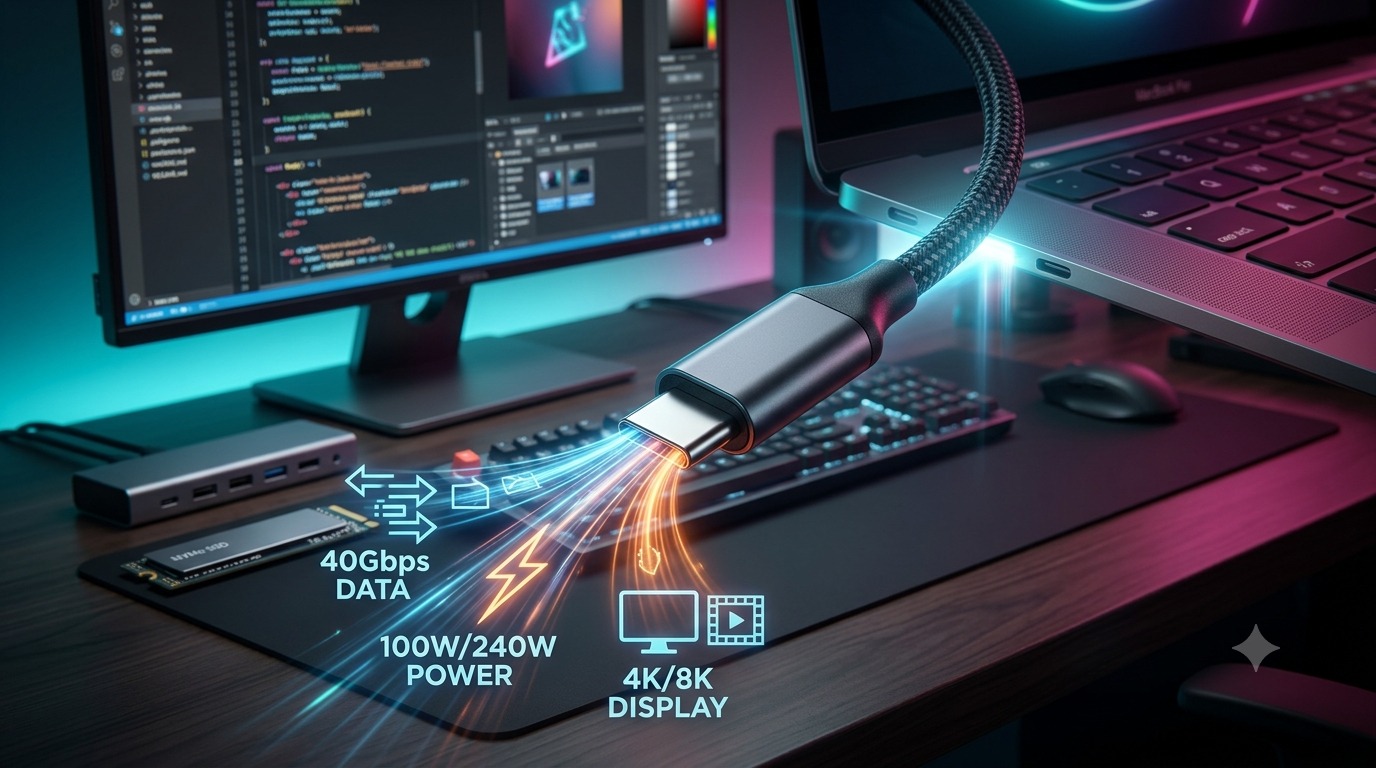
The Ultimate USB Type-C Cable Guide: Everything You Need to Know for Your Workstation Setup
If you have built a custom PC, set up a multi-monitor workstation, or hooked up a high-performance laptop recently, you have undoubtedly encountered the USB Type-C connector. Promised as the universal solution to eliminate our desktop cable clutter, USB-C was meant to replace every connector before it: DisplayPort, HDMI, USB-A, power barrels, and audio jacks.
However, behind that tiny, sleek, reversible connector lies one of the most confusing hardware ecosystems in modern computing. Two USB-C cables can look completely identical on the outside, yet one might transfer a 4K video file in seconds while charging your laptop at 100 Watts, and the other might take twenty minutes to move the same file and barely trickle-charge your phone.
At Workstation Build, performance, stability, and clean cable management are top priorities. Understanding USB Type-C cables is essential whether you are connecting external NVMe storage arrays, driving high-refresh-rate 4K displays, or powering heavy-duty mobile workstations.
This comprehensive guide breaks down the physics, protocol standards, charging capabilities, and practical buying advice for USB Type-C cables in American English.
1. Physical Connector vs. Transfer Protocol: The Great Confusion
To master USB-C, you must understand a single, fundamental distinction:
USB Type-C (or USB-C) refers only to the physical shape of the plug and port. It does not guarantee a specific data transfer speed, power level, or video output capability.
The physical connector is standardized by the USB Implementers Forum (USB-IF). Inside that slim oval plug are 24 individual pins arranged symmetrically (12 on top, 12 on the bottom). This physical layout enables the cable to be fully reversible—you can plug it in right-side up or upside down without worrying about orientation.
          +---------------------------------------------------+
Top:      | GND | TX1+ | TX1- | VBUS | CC1 | D+ | D- | SBU1 | VBUS | RX2- | RX2+ | GND |
Bottom:   | GND | RX1+ | RX1- | VBUS | SBU2| D- | D+ | CC2  | VBUS | TX2- | TX2+ | GND |
          +---------------------------------------------------+
The 24-Pin Breakdown:
- VBUS & GND (Power and Ground): Deliver electrical power to connected devices.
- TX/RX High-Speed Differential Pairs: Handle high-speed data transmission (USB 3.2, USB4, Thunderbolt, DisplayPort).
- D+ / D- Pins: Maintain backward compatibility with legacy USB 2.0 protocols.
- CC Pins (Configuration Channel): Communicate between host and peripheral to negotiate power delivery, cable orientation, and data roles.
- SBU Pins (Sideband Use): Handle secondary signals required for Alternate Modes, such as DisplayPort audio and auxiliary data channels.
Because the physical plug is just the shell, manufacturers can wire those 24 pins in multiple ways. A basic charging cable might only wire the power pins and USB 2.0 data pins, leaving the high-speed TX/RX lines completely empty. That is why physical appearance tells you virtually nothing about performance.
2. Decoding Data Standards: USB 2.0 to USB4 2.0
When selecting a USB-C cable for high-bandwidth workstation applications—such as video editing, local backups, or audio production—data transfer bandwidth is critical.
Here is how data protocols break down over a USB-C connection:
| Protocol / Standard Name | Marketing Name | Max Theoretical Bandwidth | Typical Use Case |
| USB 2.0 | High-Speed USB | 480 Mbps (60 MB/s) | Keyboards, mice, charge-only cables |
| USB 3.2 Gen 1 (formerly USB 3.0) | SuperSpeed USB 5Gbps | 5 Gbps (625 MB/s) | Standard external HDDs, flash drives |
| USB 3.2 Gen 2 (formerly USB 3.1) | SuperSpeed USB 10Gbps | 10 Gbps (1.25 GB/s) | Portable SATA/NVMe SSDs |
| USB 3.2 Gen 2×2 | SuperSpeed USB 20Gbps | 20 Gbps (2.5 GB/s) | Dual-lane high-speed external NVMe drives |
| USB4 Gen 2×2 | USB4 20Gbps | 20 Gbps (2.5 GB/s) | Entry-level USB4 peripherals, docks |
| USB4 Gen 3×2 | USB4 40Gbps | 40 Gbps (5.0 GB/s) | High-performance workstation docks, PCIe expansion |
| USB4 Version 2.0 | USB4 80Gbps / 120Gbps | 80 to 120 Gbps | Next-generation ultra-wide displays, eGPUs |
The Legacy USB 2.0 Trap
Many long, braided USB-C cables bundled with laptops and smartphones use USB 2.0 speed (480 Mbps). While excellent for delivering power over a long distance, transferring a 50 GB 4K video file over a USB 2.0 Type-C cable takes around 14 to 15 minutes. Over a USB4 40Gbps cable, that same transfer takes under two seconds.
USB 3.2 Gen 2×2: The Dual-Lane Exception
USB 3.2 Gen 2×2 achieves 20 Gbps by utilizing two 10 Gbps lanes simultaneously. However, it requires host and device hardware explicitly designed to support dual-lane operation. Many Apple Mac workstations, for example, do not natively support USB 3.2 Gen 2×2, defaulting those connections back to 10 Gbps. If high-speed transfer across cross-platform systems is essential, USB4 or Thunderbolt certified cables offer broader compatibility.
3. Power Delivery (USB-PD): Charging Modern Workstations
One of USB-C’s biggest achievements is its power handling capability. Traditional USB-A ports top out around 4.5W to 7.5W, but modern USB Power Delivery (USB-PD) protocols allow USB Type-C cables to supply desktop-level wattage to high-performance hardware.
Standard Power Range (SPR) vs. Extended Power Range (EPR)
In late 2021, the USB-IF updated the Power Delivery spec from USB-PD 3.0 to USB-PD 3.1, introducing Extended Power Range (EPR):
- Standard Power Range (SPR):
- Maximum Voltage: 20V
- Maximum Current: 5A
- Peak Wattage: 100 Watts
- Ideal for: Ultrabooks, office laptops, tablets, smartphones, and low-power workstation mini PCs.
- Extended Power Range (EPR):
- Maximum Voltage: 48V
- Maximum Current: 5A
- Peak Wattage: 240 Watts
- Ideal for: High-end gaming laptops, mobile workstations with discrete GPUs, workstation monitors, and power-hungry multi-port hubs.
USB-PD 3.0 (SPR):  [20 Volts] x [5 Amps] = 100 Watts Maximum
USB-PD 3.1 (EPR):  [48 Volts] x [5 Amps] = 240 Watts Maximum
What is an E-Marker Chip?
You cannot safely push 100W or 240W through a thin wire without risks. To prevent electrical fires, melted plastic, and damaged motherboards, the USB-C standard mandates Electronically Marked Cable Assemblies (EMCA).
An E-Marker is a tiny integrated circuit (IC) microchip embedded inside one or both boot ends of the USB-C cable.
+----------------------------------------------------------------+
|  [USB-C Connector] --> [ Embedded E-Marker Chip ] --> [Cable]  |
+----------------------------------------------------------------+
When you plug the cable into a host laptop and a power delivery brick, the devices use the Configuration Channel (CC) pins to read the E-Marker chip. The chip reports:
- The maximum current the cable can safely carry (3A vs 5A).
- The maximum voltage rating (20V for 100W, 48V for 240W).
- The data capabilities and thermal limits of the wire.
If a cable lacks an E-Marker chip, the connected system will automatically cap power delivery at 60 Watts (20V / 3A) to guarantee safety, regardless of how powerful the wall adapter is.
4. Video Output: DisplayPort Alternate Mode (Alt Mode)
For workstation enthusiasts, USB-C is not just a data or power cable; it is also a display cable.
Through a feature called Alternate Mode (Alt Mode), the high-speed data lanes inside a USB-C cable can bypass standard USB protocols entirely and transmit native DisplayPort or HDMI video signals directly from your graphics card or integrated GPU.
DisplayPort Alt Mode Capabilities:
Depending on the version of DisplayPort supported by your graphics card and cable bandwidth, DisplayPort Alt Mode can drive:
- Single 4K monitor at 60Hz, 120Hz, or 144Hz
- Single 8K monitor at 60Hz
- Dual 4K monitors via Daisy-Chaining (Multi-Stream Transport / MST)
[Workstation GPU]
       │
       ▼ (DisplayPort Alt Mode via USB-C)
[USB-C Dock / Monitor]
       │
       ├─► [Monitor 1: 4K @ 120Hz]
       └─► [Monitor 2: 4K @ 60Hz via MST Daisy-Chain]
USB-C Monitor Single-Cable Solution
The true power of DP Alt Mode shines in workstation monitor setups. With a single USB-C cable running from a laptop to a USB-C enabled desktop monitor:
- Video is output to the monitor (DisplayPort Alt Mode).
- The monitor charges the laptop (USB-PD up to 90W or 100W).
- The monitor acts as a USB hub, routing keyboard, mouse, and external drive connections back to the laptop over the same cable.
Note: To use Alt Mode, both the host port (motherboard/GPU/laptop) and the USB-C cable must explicitly support video pass-through.
5. Thunderbolt vs. USB-C: Clearing Up the Confusion
One of the most frequent questions in hardware forums is: “Is Thunderbolt the same as USB-C?”
The short answer: Thunderbolt is a protocol; USB-C is the connector shape.
Intel and Apple partnered to introduce Thunderbolt 3, which adopted the physical USB-C port design. Thunderbolt 4 and Thunderbolt 5 continue to use the USB Type-C connector.
       +-----------------------------------------------+
       |             USB Type-C Connector              |
       |  (Physical Form Factor / 24-Pin Reversible)   |
       +-----------------------+-----------------------+
                               |
       +-----------------------+-----------------------+
       |                                               |
       ▼                                               ▼
[USB Standards]                             [Thunderbolt Standards]
- USB 2.0 (480 Mbps)                        - Thunderbolt 3 (40 Gbps)
- USB 3.2 Gen 1/2 (5/10 Gbps)               - Thunderbolt 4 (40 Gbps)
- USB 3.2 Gen 2x2 (20 Gbps)                 - Thunderbolt 5 (Up to 120 Gbps)
- USB4 (20/40/80 Gbps)
Thunderbolt 3 vs. Thunderbolt 4 vs. Thunderbolt 5
- Thunderbolt 3: Guarantees up to 40 Gbps bandwidth. However, minimum requirements were looser—some TB3 cables only supported 20 Gbps over longer distances, and PCIe data speeds could drop to 16 Gbps.
- Thunderbolt 4: Strict certification requirements. Guarantees 40 Gbps across cable lengths up to 2 meters (6.6 feet), requires PCIe data bandwidth of 32 Gbps (ideal for external GPUs and ultra-fast storage), and guarantees support for dual 4K or single 8K displays.
- Thunderbolt 5: Pushes performance further, offering 80 Gbps of bi-directional bandwidth and up to 120 Gbps asymmetric dynamic bandwidth for extreme multi-monitor 240Hz workstation configurations.
Are Thunderbolt Cables Backward-Compatible?
Yes. A Thunderbolt 4 or Thunderbolt 5 cable is fully backward-compatible with USB4, USB 3.2, USB 2.0, and USB-PD standards. If you want a single cable that handles every protocol without compromise, a certified Thunderbolt 4 cable is often the top recommendation for high-end workstation environments.
6. How to Choose the Right USB-C Cable for Your Workstation
Because USB-C cables vary wildly in performance, buying the wrong cable can bottleneck high-end hardware. Here is how to match the right cable to your specific workstation application:
                  ┌─────────────────────────────────────────┐
                  │ What is your primary use case for USB-C? │
                  └────────────────────┬────────────────────┘
                                       │
      ┌────────────────────────────────┼────────────────────────────────┐
      ▼                                ▼                                ▼
[High-Speed Storage]           [Laptop Charging]             [Displays / Docks]
(NVMe SSDs, Raids)             (Mobile Workstations)         (Monitors, TB4 Hubs)
      │                                │                                │
      ▼                                ▼                                ▼
  Require:                         Require:                         Require:
- USB4 40Gbps or                 - USB-PD 3.1                     - Thunderbolt 4 / USB4
- USB 3.2 Gen 2 (10Gbps)         - 100W or 240W (EPR)             - DP Alt Mode Support
- Short length (< 1m)            - E-Marker Chip                  - High Bandwidth (40Gbps)
Scenario A: High-Speed External NVMe Storage
- Requirement: Maximum data throughput, minimum signal degradation.
- Recommended Cable: USB4 40Gbps or Thunderbolt 4 cable (0.5m to 1m in length).
- Why: These cables guarantee high-speed lane performance and sustained read/write speeds exceeding 2,500 MB/s on modern external M.2 NVMe enclosures.
Scenario B: Powering a Mobile Workstation Laptop
- Requirement: Safe, high-wattage power delivery.
- Recommended Cable: USB-PD 3.1 240W EPR Cable with E-Marker integration.
- Why: Power-heavy laptops (such as Dell Precision, HP ZBook, or Apple MacBook Pro models) require high wattage under heavy rendering loads. USB 2.0 240W cables are ideal here if high-speed data transfer isn’t needed, as they offer thicker copper conductors at lower prices over longer distances.
Scenario C: Driving Multi-Monitor Setup via Docking Station
- Requirement: High video bandwidth, USB hub data routing, host laptop charging.
- Recommended Cable: Certified Thunderbolt 4 Active Cable (1m to 2m).
- Why: Docking stations pack video, Ethernet, audio, and high-speed USB data onto one line. Passive USB cables over 1 meter long often drop bandwidth, leading to flickering monitors or lost display resolutions.
Scenario D: Everyday Desktop Peripherals (Keyboards, Mice, Audio)
- Requirement: Basic functionality and neat cable routing.
- Recommended Cable: Standard USB 2.0 Type-C to Type-C or USB-A to USB-C cable.
- Why: Peripherals consume less than 1 Watt of power and negligible data bandwidth. Spending extra money on high-bandwidth Thunderbolt cables for a mechanical keyboard provides no performance benefit.
7. Passive vs. Active Cables: Length and Signal Integrity
High-frequency signals attenuate (fade) quickly as they travel down copper wires. When dealing with high bandwidths (20 Gbps to 40 Gbps), cable physical length becomes a major engineering bottleneck.
Passive Cable (Short, <1 Meter):
[Host Device] ──────────── High-Speed Signal ────────────> [Peripheral]

Passive Cable (Long, >1 Meter - Signal Degraded):
[Host Device] ───────── High-Speed Signal ── ─ ─ ─ ─ ─ > [Errors / Failures]

Active Cable (Long, >1 to 2+ Meters):
[Host Device] ── High Speed ──> [ Re-timer Chip ] ── Signal Restored ──> [Peripheral]
Passive USB-C Cables
- Contain no signal-boosting electronics inside the wire.
- Excellent for data speeds up to 40 Gbps at short lengths (0.8 meters / 2.6 feet or shorter).
- Beyond 1 meter, passive high-speed performance drops significantly unless data speeds are reduced to USB 2.0 levels.
Active USB-C Cables
- Feature built-in signal re-drivers and re-timers integrated directly inside the cable assembly.
- Maintain full 40 Gbps data transfer, 4K/8K video output, and 100W/240W power delivery over longer lengths (up to 2 meters / 6.6 feet or more).
- Cost significantly more due to active silicon chips and complex shielding inside the connectors.
If your workstation requires routing cables through monitor arms or under-desk cable trays over long distances, invest in Active Thunderbolt 4 or USB4 cables to avoid display dropouts or drive disconnections.
8. Identifying Official USB-IF Logos and Certifications
Because uncertified cables pose potential electrical risks to expensive motherboard VRMs and laptop power circuitry, the USB Implementers Forum introduced clear, standardized branding logos.
When shopping for reliable workstation hardware, look for these explicit performance markers on product packaging and cable strain reliefs:
+-----------------------------------------------------------------------+
|                       OFFICIAL USB-IF LOGOS                           |
+-----------------------------------------------------------------------+
| Data Performance Logo      | Power Capability   | Combined Rating    |
+----------------------------+--------------------+---------------------+
| USB 40Gbps                 | 60W or 240W        | USB 40Gbps 240W     |
| USB 20Gbps                 | 240W               | USB 20Gbps 60W      |
+-----------------------------------------------------------------------+
Safety Red Flags to Avoid:
- Vague Descriptions: Terms like “Super Ultra High-Speed Fast Charge Cable” without listing explicit Gbps or Wattage numbers.
- Missing E-Markers on High-Power Cables: Cables claiming “100W or 240W support” that lack E-Marker verification can overheat during sustained heavy workloads.
- Excessively Thin Wires: High-power 5A cables require thicker gauge copper wires (typically 22 AWG or lower for power lines) to minimize resistance and heat generation.
Summary & Workstation Cable Checklist
Building a clean, high-performance workstation requires matching your cables to the performance specs of your connected devices.
Here is a quick reference checklist to keep on hand:
- Verify both ends: Your motherboard, GPU, or laptop port must support the feature (DP Alt Mode, Thunderbolt 4, USB-PD) for the cable to deliver it.
- For External Drives (SSDs): Buy short (0.5m – 1m) USB4 (40Gbps) or USB 3.2 Gen 2 (10Gbps) cables.
- For Single-Cable Displays & Docks: Choose a certified Thunderbolt 4 Active Cable to ensure simultaneous 40Gbps data, multi-monitor video, and power delivery without signal degradation.
- For Powering Laptops: Look for an explicitly marked 240W USB-PD 3.1 Extended Power Range (EPR) cable with an embedded E-Marker chip.
- For Keyboards, Mice, & Accessories: Stick to basic, durable USB 2.0 braided cables to save money without losing performance.
By investing in properly certified USB Type-C cables, you protect your workstation hardware, optimize data transfer rates, and unlock the full potential of a modern, clutter-free setup.