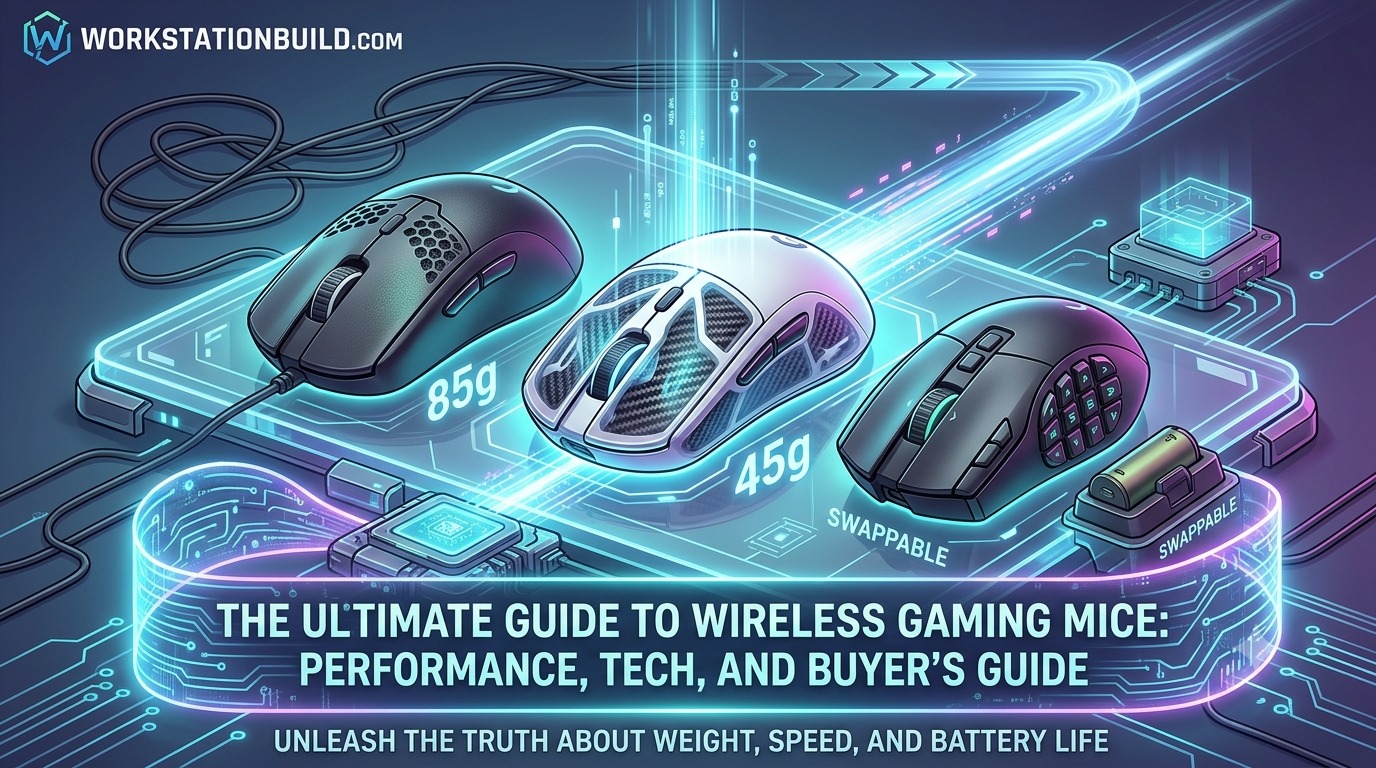
The Ultimate Guide to Wireless Gaming Mice: Performance, Tech, and Buyer’s Guide
There was a time when competitive PC gamers Wireless Gaming Mice treated wireless mice with intense skepticism. Early wireless models suffered from noticeable input lag, heavy battery packs, signal dropouts, and sudden power failure in the middle of crucial matches. Serious players swore by wired mice, viewing a braided cord as the non-negotiable price for pinpoint accuracy and zero latency.
That era is officially over.
Today, modern wireless gaming technology not only rivals wired performance—it often surpasses it. Pro esports athletes routinely win world championships using lightweight wireless mice, enjoying full freedom of movement without the drag of a mouse cable or the need for a mouse bungee.
However, with hundreds of models flooding the market across various price brackets, shapes, sensors, and feature sets, picking the right wireless gaming mouse can feel overwhelming. Whether you are aiming for high-velocity flick shots in tactical shooters, managing complex macro rotations in MMOs, or building a clean, cable-free desktop workstation that doubles as a gaming hub, this comprehensive guide covers everything you need to know.
1. The Death of Wireless Lag: How Modern Wireless Mice Work
To understand why wireless gaming mice dominate the market today, it helps to look under the hood at how wireless transmission has evolved.
2.4 GHz Proprietary Wireless vs. Bluetooth
Not all wireless connections are created equal. When evaluating a gaming mouse, you will encounter two primary wireless connection types:
- 2.4 GHz Radio Frequency (RF) Wireless: This is the standard for serious gaming. Utilizing a dedicated USB receiver (dongle), 2.4 GHz connections transfer data over custom, high-bandwidth protocols. They offer sub-millisecond report rates and near-zero latency, delivering identical responsiveness to a traditional USB cable.
- Bluetooth Connectivity: Bluetooth is designed for power efficiency, not high-speed gaming. It caps report rates at around 125 Hz (8ms delay) and introduces variable input latency. While Bluetooth is great for productivity on the go, travel laptops, or saving battery during work tasks, it should be avoided for competitive gaming.
Many modern flagship mice feature Tri-Mode Connectivity (2.4 GHz RF, Bluetooth, and wired USB-C mode), giving you the flexibility to switch between intense gaming sessions and multi-device workstation use with a quick toggle on the bottom of the mouse.
Demystifying Polling Rates: 1,000 Hz to 8,000 Hz
A mouse’s polling rate (measured in Hertz, Hz) dictates how many times per second the mouse reports its position and click inputs to your PC.
- 1,000 Hz (1ms response time): Long considered the gold standard for gaming. It sends 1,000 reports per second, providing smooth, instantaneous cursor tracking on standard 60 Hz to 240 Hz displays.
- 4,000 Hz to 8,000 Hz (0.25ms to 0.125ms response time): High-polling-rate wireless technology reports data up to 8,000 times per second. Combined with 360 Hz+ or 540 Hz esports monitors, high polling rates reduce micro-stutter during rapid mouse sweeps and decrease click registration latency.
Note for buyers: High polling rates demand more processing power from your PC’s CPU and drain mouse battery life significantly faster. For most gamers, 1,000 Hz to 2,000 Hz represents the sweet spot between high-end performance and long battery life.
2. Core Hardware Specifications: What Actually Matters
Marketing campaigns love to throw around massive numbers, but understanding what specs genuinely affect your gameplay will prevent you from overpaying for unnecessary gimmicks.
       ┌────────────────────────────────────────────────────────┐
       │              WIRELESS GAMING MOUSE ANATOMY             │
       └────────────────────────────────────────────────────────┘
                                  │
      ┌───────────────────────────┼───────────────────────────┐
      ▼                           ▼                           ▼
 ┌──────────┐               ┌──────────┐               ┌──────────┐
 │ SENSOR   │               │ SWITCHES │               │ BATTERY  │
 ├──────────┤               ├──────────┤               ├──────────┤
 │ • DPI    │               │ • Optical│               │ • Li-Ion │
 │ • IPS    │               │ • Mech.  │               │ • Swapp. │
 │ • Accel. │               │ • Haptic │               │ • Qi/Dock│
 └──────────┘               └──────────┘               └──────────┘
Optical Sensors: DPI, IPS, and Acceleration
The sensor is the heart of any mouse. It takes thousands of microscopic pictures of your mousepad per second to calculate movement.
- DPI (Dots Per Inch) / CPI (Counts Per Inch): Modern sensors offer DPI ratings up to 30,000 DPI or higher. However, virtually no pro gamer plays above 3,200 DPI; most stay between 400 DPI and 1,600 DPI. High DPI limits are simply a byproduct of modern sensor precision. Focus instead on whether the sensor offers smooth tracking without hardware smoothing or acceleration.
- IPS (Inches Per Second): IPS measures the maximum speed at which you can swipe the mouse before the sensor loses track of the surface. Look for a mouse rated for 400 IPS or higher. This ensures that even high-speed flick shots across your desk register flawlessly.
- Max Acceleration (G-force): Measured in g, this indicates how much acceleration the sensor can withstand during sudden directional changes. A rating of 40G to 50G guarantees the sensor won’t spin out during aggressive maneuvers.
Mouse Switches: Optical vs. Mechanical
Switches sit directly underneath the main left and right click buttons. The choice of switch impacts both click feel and durability:
- Mechanical Switches: Rely on physical metal contacts touching to register a signal. While they provide a tactile, crisp click, they can degrade over time due to physical wear, leading to unwanted “double-clicking” issues.
- Optical Switches: Utilize an infrared light beam inside the switch. When you press the button, a shutter blocks or opens the light beam, instantly registering the input without physical contact points. Optical switches eliminate bounce delay, prevent double-clicking entirely, and typically endure 80 million to 100 million clicks.
3. Ergonomics, Mouse Weight, and Grip Styles
No matter how advanced a mouse’s sensor is, it won’t help your aim if the mouse causes hand fatigue or doesn’t match your physical grip.
         ┌────────────────────────────────────────────────┐
         │              PRIMARY GRIP STYLES               │
         └────────────────────────────────────────────────┘
                                  │
      ┌───────────────────────────┼───────────────────────────┐
      ▼                           ▼                           ▼
 ┌──────────┐               ┌──────────┐               ┌──────────┐
 │   PALM   │               │   CLAW   │               │FINGERTIP │
 ├──────────┤               ├──────────┤               ├──────────┤
 │ Full hand│               │ Arching  │               │ Only     │
 │ contact; │               │ fingers; │               │ fingertips│
 │ maximum  │               │ palm base│               │ touch;   │
 │ comfort. │               │ touch.   │               │ fast.    │
 └──────────┘               └──────────┘               └──────────┘
The Three Main Grip Styles
- Palm Grip: Your entire hand rests flat on the body of the mouse, with your fingers lying completely along the left and right buttons.
- Best Mouse Shape: Ergonomic, right-handed contoured mice with a mid-to-high palm hump for full arch support.
- Claw Grip: Your palm rests against the rear hump of the mouse, but your fingers arch upward, touching the buttons only at the tips. This grip allows for quick vertical micro-adjustments.
- Best Mouse Shape: Symmetrical or semi-ergonomic mice with a pronounced rear hump that locks comfortably into the base of the palm.
- Fingertip Grip: Your palm makes zero contact with the body of the mouse. Movement is controlled entirely by your thumb, index, and middle fingertips, providing maximum dexterity and speed.
- Best Mouse Shape: Low-profile, compact, symmetrical ultra-lightweight mice with minimal humps.
The Ultra-Lightweight Revolution
Over the past several years, mouse weights have dropped dramatically:
- Heavy / Feature-Rich (90g – 120g+): Often packed with customizable weights, heavy RGB lighting, multi-button thumb grids, and ergonomic thumb rests. Ideal for productivity, MMOs, and casual gaming.
- Medium Weight (65g – 85g): Versatile options that balance durability, extra features, and easy glide.
- Ultra-Lightweight (< 45g – 65g): Engineered specifically for fast-paced First-Person Shooters (FPS). By stripping out internal plastic support, utilizing honeycomb shells, or employing advanced structural polymers, these mice minimize wrist fatigue and allow faster stopping power during target acquisition.
4. Battery Life and Power Solutions
Modern battery tech has removed the anxiety of your wireless mouse dying mid-match. However, power management strategies vary depending on how you use your workstation and gaming setup.
Internal Rechargeable Lithium-Ion Batteries
Most modern high-performance wireless mice use built-in lithium-ion batteries charged via a flexible USB-C cable.
- Battery Life Expectancy: Typically ranges from 60 to 100+ hours at a standard 1,000 Hz polling rate with RGB turned off.
- Quick-Charging Features: Many flagship models offer fast charging over USB-C—giving you 5 to 10 hours of play from just a 10-minute charge break.
Innovative Power Options
- Swappable Battery Systems: Some competitive mice feature ultra-lightweight removable battery packs, allowing you to swap a freshly charged battery in seconds without plugging in a cable.
- Wireless Charging Docks & Mousepads: Magnetic charging docks provide an elegant desktop centerpiece, dropping the mouse into place when not in use. Additionally, induction charging mousepads wirelessly feed continuous power to the mouse while in motion, eliminating the need to plug in a cable ever again.
5. Wireless Gaming Mouse Categories & Recommendations
Depending on your playstyle, desktop ecosystem, and primary game genres, different mouse categories offer tailored benefits:
| Category | Primary Focus | Ideal Weight | Key Features | Top Considerations |
| Esports / Competitive FPS | Speed, tracking accuracy, low latency | 40g – 60g | 4K/8K Hz support, optical switches, PTFE feet | Symmetrical/Ergonomics shape, stripped-down shell, no RGB |
| MMO / MOBA | Customization, command binds | 85g – 120g | 12+ programmable side buttons, swappable side plates | Ergonomic support, robust software macros |
| All-Rounder / Hybrid | Gaming + Daily Workstation Productivity | 65g – 85g | Dual scroll wheels, Bluetooth toggle, ergonomic contouring | Battery life, comfortable rubberized grips, quiet switches |
| Budget Wireless | Maximum value per dollar | 55g – 75g | 2.4 GHz low latency, solid optical sensor (e.g., PAW3395) | Affordable price point, reliable basic software |
1. Competitive FPS & Tactical Shooters
In titles like VALORANT, Counter-Strike 2, or Apex Legends, speed and raw consistency take priority over extra buttons. Look for mice weighing under 65 grams, featuring 100% pure PTFE (Teflon) feet for effortless glide, high-polling-rate capability, and zero-flex outer shells.
2. MMOs, MOBAs, and Productivity Hybrids
If your gaming rotation centers around World of Warcraft, Final Fantasy XIV, or complex strategy titles like Dota 2, accessible side-button real estate is essential. MMO-oriented mice provide multi-button thumb panels, tilt scroll wheels, and endless macro customization, allowing you to trigger complex ability rotations without taking your fingers off your movement keys.
3. Workstation & Hybrid Desk Setups
For users who balance remote work, content creation, software development, and late-night gaming sessions, hybrid mice provide the best of both worlds. Features like smart scroll wheels (switching between tactile ratchet mode and free-spin hyper-scrolling), multi-device pairing, and subtle office-friendly aesthetics allow you to move effortlessly between spreadsheet editing and competitive matches.
6. Crucial Hardware Accessories & Setup Optimizations
Buying a top-tier wireless mouse is only half the battle; properly optimizing your environment ensures zero interference and maximum responsiveness.
       ┌────────────────────────────────────────────────────────┐
       │             DESKTOP DONGLE PLACEMENT SETUP             │
       └────────────────────────────────────────────────────────┘

              [ MONITOR ]
                   │
                   │  ◄── Keep distance under 8-12 inches
                   │
            [ WIRELESS DONGLE ] ── (Extender Cable) ── [ REAR USB PORT ]
                   │
                   ▼
           [ MOUSEPAD & MOUSE ]
1. Extender Cable & Dongle Placement
Wireless 2.4 GHz signals can suffer from interference if the USB receiver is plugged directly into the back I/O panel of a desktop PC, especially right next to active USB 3.0 ports or Wi-Fi antennas.
- Pro Tip: Always use the included USB extension cable and adapter block to bring your wireless dongle onto your desk, placing it within 8 to 12 inches of your mousepad. This maintains a direct line of sight and prevents signal packet drops.
2. Mouse Feet and Mousepad Surfaces
How your mouse physically interacts with your desk surface dictates your aim control:
- 100% Virgin Grade PTFE Feet: Pure white PTFE skates provide a smooth, low-friction glide across fabric and cordura pads.
- Glass Skates: Made of hardened aluminosilicate glass, these aftermarket feet offer virtually zero dynamic friction for ultra-fast gliding, though they require clean surfaces to avoid scratchiness.
- Mousepad Pairing: Pair low-friction PTFE feet with a medium-control cloth pad to balance fast flick speeds with steady stopping power.
3. OS and Software Configuration
To get true 1:1 tracking, ensure your software settings aren’t interfering with your mouse hardware:
- Disable “Enhance Pointer Precision”: In Windows Mouse Settings, uncheck this option. It applies artificial acceleration that distorts your muscle memory by changing cursor distance based on how fast you move the mouse.
- Match DPI and In-Game Sensitivity: High DPI (e.g., 1,600 DPI) combined with a lower in-game sensitivity multiplier delivers smoother sensor movement with less input latency than running a low 400 DPI setting with high in-game sensitivity.
- Keep Firmware Updated: Manufacturers regularly publish firmware updates to improve battery management, lower click latency, and fix connection stability issues.
7. How to Maintain and Extend the Life of Your Wireless Mouse
A high-end wireless gaming mouse is an investment. With simple routine care, you can keep it performing like brand new for years:
- Clean the Optical Sensor Lens: Dust, lint, and stray pet hairs can trap themselves inside the sensor cutout on the bottom of the mouse, causing sporadic cursor jumps. Use a canister of compressed air or a soft cotton swab to clear out debris monthly.
- Maintain the Rubber Grips & Shell: Oils from your hands naturally build up on the main buttons and side panels. Wipe down your mouse weekly using a slightly damp microfiber cloth (or isopropyl alcohol wipes designed for electronics) to keep grimy buildup at bay.
- Protect Battery Health: Avoid letting your mouse battery drain completely to 0% on a regular basis. Charging your mouse when it drops to around 20% to 30% preserves long-term battery cell integrity.
Final Thoughts: Finding Your Perfect Fit
The wireless gaming mouse landscape has reached an impressive peak. Wireless latency is no longer a compromise, sensors track with micro-inch accuracy, and ultra-lightweight designs keep hand strain to a minimum during long gaming or work sessions.
When picking your next mouse, prioritize hand shape, weight preference, and grip style above flashy marketing specs. A comfortable, ergonomic mouse with an accurate sensor will elevate your gaming performance far more than a high DPI number ever could.
Whether you choose a stripped-down esports mouse built for fast FPS flicks or a feature-packed workstation hybrid designed for work and play, cutting the cord gives you the freedom, precision, and clean aesthetic your desk setup deserves.